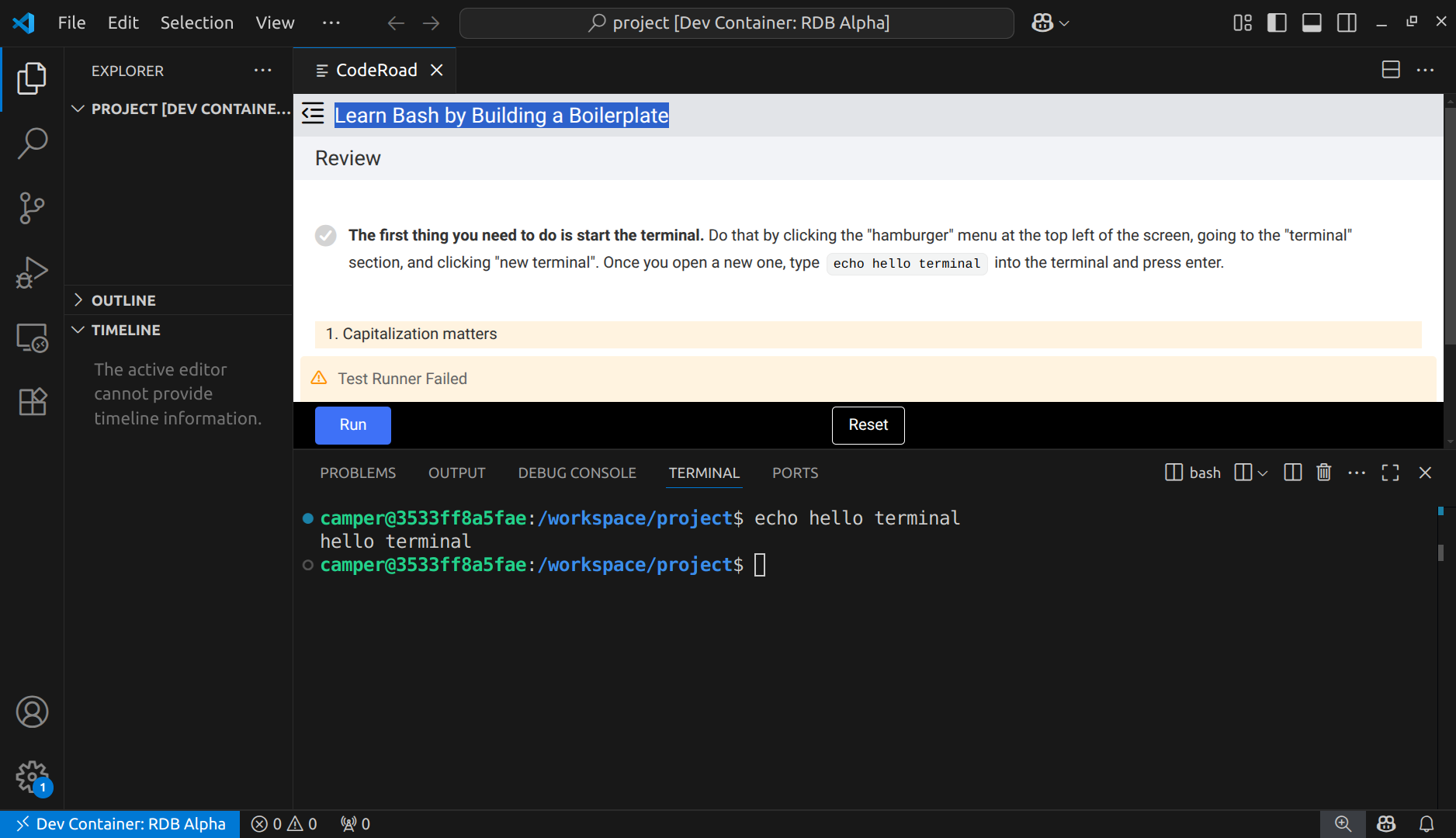
"Rebuild and Reopen in Container" does not show up in DevContainers

I*m new and I want to start this course: https://www.freecodecamp.org/learn/relational-database/learn-bash-by-building-a-boilerplate/build-a-boilerplate

Unfortunately I’m stuck in step 3. This command “Dev Containers: Rebuild and Reopen in Container” will not show up in the “Command Palette.”

Please help me to get the course started.

This is what I use:
Version of my PC: Linux Mint 21.3
Version of VS Code: 1.102.2
Version of GIT: 2.34.1
Version of Docker: 28.3.3

which directory did you run vscode from?

I opend VS Code with this command in the terminal: ~/rdb-alpha$ code

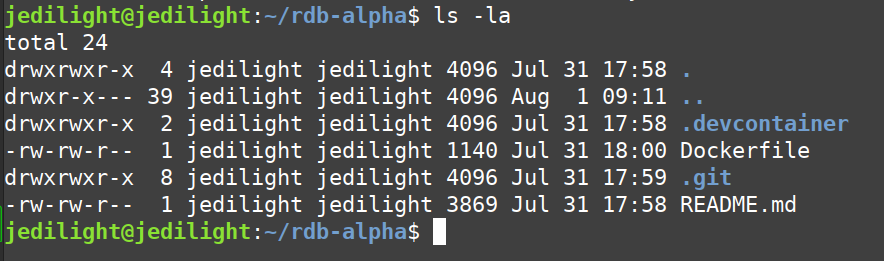
in your directory, can you run ls -la please and show the results?

total 24
drwxrwxr-x 4 usr usr 4096 Jul 29 18:03 .
drwxr-x— 40 usr usr 4096 Jul 30 17:25 ..
drwxrwxr-x 2 usr usr 4096 Jul 29 18:03 .devcontainer
-rw-rw-r-- 1 usr usr 1140 Jul 29 18:28 Dockerfile
drwxrwxr-x 8 usr usr 4096 Jul 29 18:20 .git
-rw-rw-r-- 1 usr usr 3869 Jul 29 18:03 README.md

thanks. I took a closer look at your picture. It seems you are already in the container (look at the bottom left corner to see the blue highlighted area)

Anyway, so since you are in the container, that’s why you cannot see the option to reopen in the container. You can just choose the rebuild option instead.

Thank you for your support!

Okay, so I only used the command: “Dev Containers: Rebuild Container”.

Afterwards I used the command: “CodeRoad: Start” but it was not shown up. Please have a look at the screenshot:

it probably failed to install (whenever you get presented with a little dialog in the right bottom corner that says something about a log, you should click it to see the messages that are being placed into it)

At this point, you can try this workaround:

hbar1st@HanaaP:~/rdb-alpha/.devcontainer$ more devcontainer.json
{
  "name": "RDB Alpha",
  "dockerFile": "../Dockerfile",
  "workspaceFolder": "/workspace/project",
  "customizations": {
    "vscode": {
      "extensions": [
        "coderoad.coderoad@0.17.2"
      ]
    }
  }
}

This is my .devcontainer file. Modify yours to match (the line to change is the last one with coderoad on it)

After that, try the rebuild one more time.

1 Like

Thank you so much! Now the command: “CodeRoad: Start” worked!

1 Like

May I ask one more question?

I was now able to start the course, but after pushing “run” for the first step it says: “Test runner failed”

What can I do?

You’re not supposed to need to click run. It is supposed to run automatically. Can you try to reset?
But just let it take its time resetting. Don’t rush it.

I reseted it. And then I entered the command “echo hello terminal” again, but it does not show the next step.

your terminal doesn’t have the same prompt as mine. Can you try opening a new terminal by clicking on the + sign in the right side of your current terminal and choosing the ‘bash’ option? here’s how it is supposed to look when opened

Edit, actually you don’t have the same + sign i do.
So try clicking the icon with the little down arrow next it instead

I opened a new bash (and I closed it and tried it new) but it still shows the same, with the workspace in front of projects

do you think you did anything extra when you were setting up your repo?
Mine doesn’t show all the projects yours has and doesn’t have a directory called workspace in it either.
Any chance you can start over with a clean repo?

edit: here’s how my screen looks

I uninstalled Docker and VS Code and the Git Clone and set everything new up.

But still shows me the same, with the workspace in front of projects and i still have the same problem that the course does not move to the second step.

Then I closed the dev container with the “workspace” and started the dev container “camper”, but then I get an error that the workspace is missing. Please have a look at the screenshot:

When I then chosse the workspace/projects it brings me to the course, but again, does not run.

can you tell me when you are in the repo, before you open vscode, does it look like this:

hbar1st@HanaaP:~/rdb-alpha$ ls -la
total 24
drwxr-xr-x  4 hbar1st hbar1st 4096 Jul 25 16:19 .
drwxr-x--- 30 hbar1st hbar1st 4096 Jul 31 15:10 ..
drwxr-xr-x  2 hbar1st hbar1st 4096 Jul 28 08:30 .devcontainer
drwxr-xr-x  8 hbar1st hbar1st 4096 Jul 25 16:19 .git
-rw-r--r--  1 hbar1st hbar1st 1140 Jul 25 16:21 Dockerfile
-rw-r--r--  1 hbar1st hbar1st 3869 Jul 25 16:19 README.md

My process is very simple. I go to my repo. Then I run code .
This takes me to this screen:

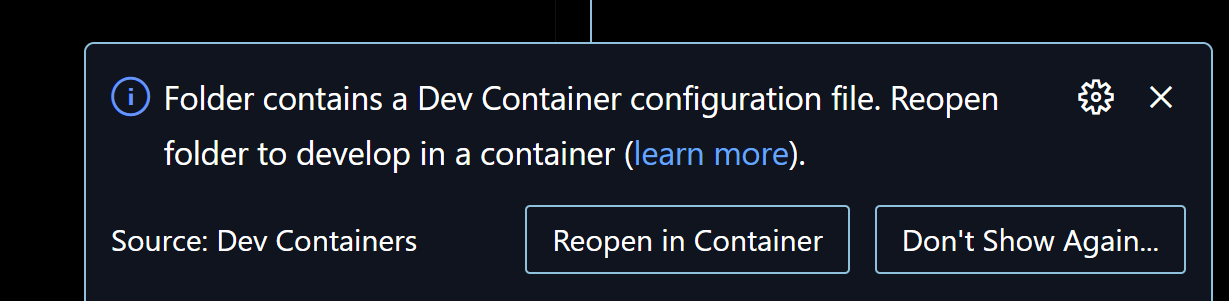
and in the bottom corner, i have a popup that shows up and I click on Reopen there

and this takes me to the screen I shared earlier.

What is your process exactly?

This is how it looks like on my side:

It seems that the 3rd line is different to yours.

This is the following window in VS Code:

I also have the popup. When I click it, this opens:

After this I enter in the command palette : Dev Containers: Rebuild in Container

And then CodeRoad: Start —> the course open, but it does still not run

i’m not sure why your container looks so different to mine.

One idea to try is to delete the container from docker itself.
When I open docker desktop for example I see this:

You can select the rdb container and then choose to delete it.

Maybe if you delete it and retry the instructions to build everything again , it will look like mine.

I don’t have docker desktop installed, yet. I only have docker engine. Is it also possible to delete this container only by using docker engine.

I think it would make the trouble bigger when I install docker desktop, because it includes docker engine…

I don’t know!